
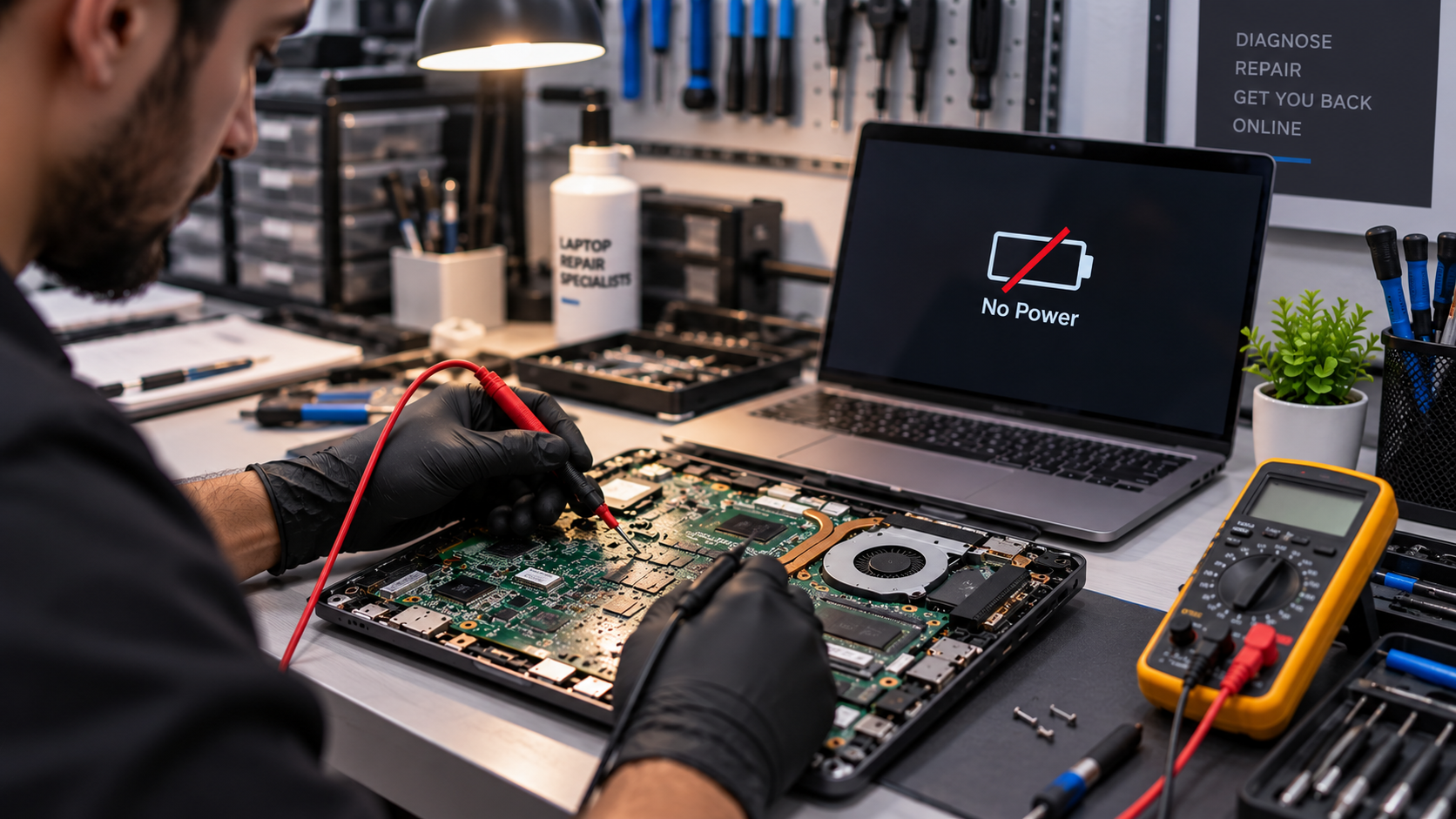
Pressing the power button and getting absolutely nothing can be worrying, especially when your laptop was working normally before. If your laptop motherboard is not powering on, the cause could range from a failed power circuit or damaged component to a charging fault, short circuit, or liquid damage.
Before assuming the motherboard needs replacement, it is important to identify what is actually preventing the laptop from starting. In this guide, we explain the common causes, warning signs, basic checks you can safely perform, and when professional motherboard diagnosis and repair may be needed.
What Causes a Laptop Motherboard to Lose Power?
A laptop motherboard depends on several power stages working correctly. If one part of this chain fails, the laptop may show no lights, no fan movement and no response when you press the power button.
Common causes include:
- Failed or faulty AC adapter
- Damaged charging port
- Weak or failed battery
- Shorted motherboard component
- Failed MOSFET or capacitor
- Damaged charging circuit
- Faulty power-management IC
- BIOS or embedded-controller problems
- Liquid or corrosion damage
- Electrical surge or power-related damage
- Physical damage to the motherboard
A laptop that won’t power on does not automatically mean the motherboard has failed. The problem could also be related to the charger, battery, charging port, or another component in the power system.
| Need motherboard repair? Book your laptop diagnosis today before the fault causes further damage.Book a Motherboard Diagnosis Now |
What Should You Check First?
Before opening the laptop or assuming the board has failed, work through the simple checks first.
1. Check the charger
Connect the original or compatible charger and look for a charging light.
If there is no charging indicator, check:
- Whether the adapter is receiving power
- Whether the cable is damaged
- Whether the connector fits properly
- Whether the charging port feels loose
- Whether another compatible charger works
If the laptop only works with a particular charger or the charging connection cuts in and out, the issue may involve the charging system rather than the entire motherboard.
If your laptop isn’t charging properly or the charging socket feels loose or damaged, the problem may be more than a faulty charger. A closer look at the port and its connection can help identify whether laptop charging port repair is needed.
2. Perform a basic power reset
Disconnect the charger and any USB devices, external drives, memory cards, and other accessories.
Then hold the laptop’s power button for around 10–20 seconds, depending on the manufacturer and model.
3. Remove unnecessary accessories
A faulty USB device, external drive, or peripheral can sometimes interfere with startup.
Disconnect everything except the charger and try powering on again.
This follows the same basic diagnostic principle used by motherboard manufacturers: reduce the system to essential components and isolate the source of the fault. ASUS, for example, recommends testing with minimal components when investigating no-power or no-boot conditions.
4. Look for any signs of life
Pay attention to small changes.
Does the laptop:
- Show a charging light?
- Flash the keyboard?
- Spin the fan briefly?
- Make a beep?
- Become warm?
- Show a logo before shutting down?
- Turn on but show a black screen?
These details matter because a laptop motherboard not powering on is different from a laptop that powers on but cannot complete its boot process.
How Do Technicians Diagnose a Laptop Motherboard Power Problem?
If the basic checks do not solve the problem, the next step is to determine whether power is reaching the motherboard and whether the board is completing its startup sequence.
A technician will normally work through the power path rather than immediately replacing the motherboard.
The process may include:
- Testing the AC adapter and input voltage
- Checking the charging port
- Testing the battery and battery connection
- Checking the motherboard’s input power section
- Testing charging and power-management circuits
- Checking for shorted components
- Testing relevant power rails
- Checking the BIOS or embedded controller where appropriate
- Inspecting the board for liquid, corrosion, or physical damage
- Testing the laptop after the faulty section is isolated
This approach is important because a dead laptop does not automatically mean a dead motherboard.
For example, AMD separates no power, no display, and no boot as different failure conditions and recommends troubleshooting based on the actual symptoms.
Can a Motherboard Power Circuit Be Repaired?
Yes, in some cases.
A motherboard does not always need to be replaced simply because the laptop has no power. If testing identifies a failed component in the power circuit, a repair technician may be able to replace the faulty component or repair the affected section.
Depending on the fault, this may involve:
- Replacing a damaged MOSFET
- Replacing a failed capacitor
- Repairing a charging circuit
- Replacing a damaged power-management component
- Repairing a shorted power rail
- Addressing corrosion
- Repairing damaged board connections
However, component-level repair requires specialised equipment and board-level diagnostic skills. Guessing and replacing parts without identifying the fault can make the problem worse.
If testing confirms a motherboard fault, consider a professional laptop motherboard repair service to identify whether the board can be repaired before paying for a complete replacement.
What Are the Signs of a Failed Motherboard?
Some symptoms make a motherboard fault more likely, especially when other power sources have already been ruled out.
Look for:
- No charging light
- No response from the power button
- No fan movement
- No keyboard lights
- No startup sound
- Visible burn marks
- Liquid or corrosion damage
- A sudden shutdown followed by complete loss of power
- Laptop stopped working after a power surge, liquid spill, or electrical event.
Still, these symptoms are not enough to confirm motherboard failure on their own.
A faulty charger, battery, charging port, or another internal component can create similar symptoms. That is why proper diagnosis should come before motherboard replacement.
When Should You Stop Troubleshooting at Home?
Basic checks are reasonable, but internal motherboard testing is different.
Avoid opening the laptop or probing the motherboard if you do not have the correct tools and experience. Modern laptop boards contain small components and multiple power circuits, and incorrect testing can cause additional damage.
You should consider professional diagnosis when:
- The laptop remains completely dead after basic checks
- The charging port appears damaged
- There are signs of liquid damage
- The laptop stopped working after a power surge
- You smell burning or see visible board damage
- The laptop repeatedly shuts down during startup
- A battery or charger replacement does not solve the problem
- You suspect a motherboard power circuit fault
A technician can test the individual sections of the board instead of simply replacing expensive parts.
Can a Laptop With No Power Still Be Repaired?
In many cases, yes. The repair depends on what caused the failure.
If the issue is the charger, battery, or charging port, the solution may be relatively straightforward. If the problem is a failed motherboard component, board-level repair may be possible.
However, severe liquid damage, extensive corrosion, physical board damage, or a major controller failure can make repair more difficult or uneconomical.
The important point is that a laptop motherboard not powering on should be treated as a symptom rather than an automatic diagnosis.
What Should You Do If Your Laptop Won’t Turn On?
Start with the safest checks:
First, disconnect USB devices and other accessories and inspect the charger.
Next, perform the appropriate power reset for your laptop.
Then, check whether the laptop shows any charging light, fan activity, or other response.
After that, consider whether the problem started after liquid exposure, overheating, a power surge, or physical impact.
If there is still no response, avoid opening or probing the motherboard yourself. A professional diagnostic can determine whether the issue is related to the battery, charging system, power circuit, or motherboard.
| Need Help With a No-Power Laptop?If basic troubleshooting has not restored your laptop, professional diagnosis can help identify the actual fault before you commit to a motherboard replacement.Call us now |
Conclusion
A laptop that won’t power on does not always mean that the entire motherboard has failed. The charger, battery, charging port, embedded controller, and individual motherboard components can all cause similar symptoms.
Start with safe checks such as the charger, power reset, and connected accessories. If these steps do not help, professional testing can trace the fault through the motherboard’s power system and determine whether component-level repair is possible.
The key is simple: diagnose the fault first, then decide whether repair or replacement makes sense.

1 comment on “Why Is My Laptop Motherboard Not Powering On? A Complete Guide”