
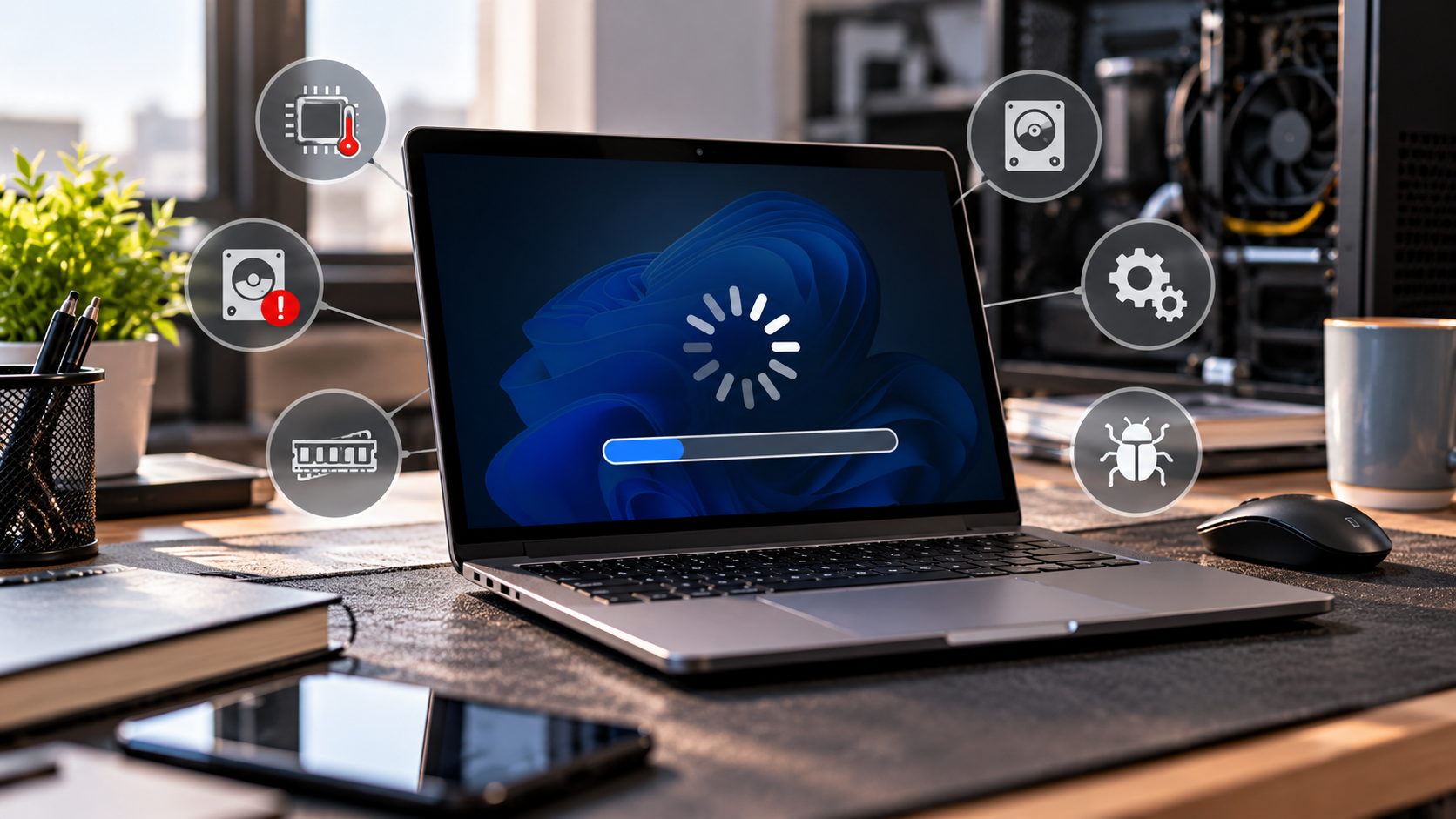
You open a program and wait. Then you click again, wondering if the computer even registered it. A machine that was working normally yesterday can suddenly feel painfully slow today. If your computer running slow problem appeared without warning, don’t assume you need a new PC. Low storage, background apps, overheating, malware, memory limitations, or failing hardware could be responsible.
Microsoft recommends checking areas such as startup applications, available storage, background activity, malware, and software updates when troubleshooting Windows performance.
The first step is therefore simple: find out what changed and which resource is being used heavily.
Here’s how to find the cause and what you can do about it.
What Are the Most Common Causes of a Slow Computer?
1. Too Many Startup Apps
Some programs automatically launch every time Windows starts. The more unnecessary apps running in the background, the more resources your computer has to manage before you even begin working.
What to do:
- Press Ctrl + Shift + Esc to open Task Manager.
- Select Startup apps.
- Review programs with high startup impact.
- Disable apps you don’t need to launch automatically.
- Leave Windows components and security software alone unless you know what they do.
Microsoft’s Task Manager shows startup impact, making it easier to identify applications worth reviewing.
2. Your Storage Is Nearly Full
Windows needs available disk space for temporary files, updates, applications, and normal system operations. When your drive is almost full, everyday tasks can become less responsive.
What to do:
- Open Settings → System → Storage.
- Remove unnecessary temporary files.
- Uninstall programs you no longer use.
- Move large personal files to suitable external or cloud storage.
- Keep an eye on your available space rather than waiting until the drive is full.
Microsoft also recommends freeing storage when a Windows PC is running low on space.
3. Background Processes Are Using Too Many Resources
You might have only two applications open, but numerous processes can still be running.
Open Task Manager and check CPU, Memory, and Disk usage. If one application consistently consumes an unusually high percentage, close it if appropriate and investigate what it is doing.
Quick check:
- High CPU: Look for demanding applications or processes.
- High Memory: Check how many programs and browser tabs are open.
- High Disk: Look for heavy file activity, updates, or possible storage problems.
Don’t end unfamiliar system processes simply because they use resources.
4. Your PC Is Overheating
Heat can reduce performance because processors may lower their operating speed to control temperatures.
A useful clue is timing. If the computer works reasonably well after startup but becomes noticeably slower after running for a while, cooling deserves attention.
What to check:
- Are the fans unusually loud?
- Are the vents blocked?
- Is there visible dust inside the case?
- Does performance drop during demanding tasks?
- Is the computer unusually hot?
EZLaptopRepair’s PC Cleaning Service in Las Vegas includes internal dust removal, cooling checks, airflow optimisation, and temperature testing.
5. Malware or Unwanted Software Is Running
Malware can consume system resources in the background, while unwanted applications may add processes you never intended to run.
A sudden slowdown combined with browser redirects, unexpected pop-ups, unfamiliar programs, or unusual security warnings deserves attention.
What to do:
- Open Windows Security.
- Run a malware scan.
- Remove software you don’t recognise only after confirming what it is.
- Avoid downloading random “PC speed-up” tools that promise instant results.
If you suspect an infection, EZ’s virus and malware removal service can be used instead of repeatedly installing unknown cleanup programs.
6. Windows or Drivers Need Attention
An outdated operating system or driver can sometimes contribute to compatibility and performance problems.
What to do:
- Open Settings → Windows Update.
- Install appropriate Windows updates.
- Check for driver updates from the hardware manufacturer when needed.
- Restart the computer after major updates.
Don’t assume every slowdown requires a new driver, though. If the problem began immediately after a particular update, that timing is useful when diagnosing the issue.
7. Your Computer Doesn’t Have Enough RAM for Your Workload
A computer may be perfectly capable of basic browsing but struggle when you have dozens of browser tabs, large spreadsheets, editing software, or several applications open simultaneously.
Open Task Manager → Performance → Memory while the slowdown is happening.
Signs memory may be limiting performance:
- Programs become unresponsive when multitasking.
- Switching between applications takes longer.
- Browser tabs reload frequently.
- Memory usage stays close to its limit.
- The computer becomes sluggish as more programs open.
If your system has upgradeable memory, a RAM upgrade service may be worth considering. First, check compatibility because not every computer allows a memory upgrade.
8. The Storage Drive Is Slow or Failing
Storage can affect both startup and everyday responsiveness.
An older mechanical hard drive may feel considerably slower than an SSD. A failing drive can also cause freezing, unusually long loading times, missing files, or boot problems.
Warning signs include:
- Files take unusually long to open.
- Windows freezes during disk activity.
- Programs repeatedly stop responding.
- The drive disappears intermittently.
- A mechanical drive makes clicking or grinding sounds.
If you hear unusual mechanical noises, stop unnecessary use and consider professional data assessment before continuing to troubleshoot.
9. Your Hardware Is Struggling With Newer Software
Sometimes the computer isn’t faulty. Your workload has simply outgrown its original hardware.
An older system may struggle with newer applications, large projects, modern games, or heavy multitasking even when Windows is properly maintained.
Before replacing the computer:
- Check whether an SSD upgrade is possible.
- Check whether RAM can be expanded.
- Review CPU and GPU requirements for the software you use.
- Compare the cost of targeted upgrades with a replacement computer.
A targeted upgrade can sometimes extend the useful life of a computer without replacing the entire system.
10. A Hardware Component May Be Failing
If the slowdown is accompanied by freezing, blue screens, unexpected restarts, unusual noises, or other failures, don’t treat it as ordinary performance decline.
Look for these combinations:
- Slow performance + frequent crashes
- Slow loading + storage errors
- Sluggishness + overheating
- Freezing + unusual drive noises
- Poor performance + unexpected restarts
At this point, repeatedly reinstalling Windows or deleting files may not solve the underlying fault.
How Can You Speed Up Your Computer Without Replacing It?
If the computer is otherwise healthy, start with the least disruptive fixes.
Try these steps first:
- Restart the computer.
- Check CPU, Memory, and Disk usage in Task Manager.
- Disable unnecessary startup programs.
- Free up storage.
- Remove unused applications.
- Run a malware scan.
- Install appropriate Windows updates.
- Check temperatures and airflow.
- Test the storage drive if the slowdown appeared suddenly.
- Consider RAM or SSD upgrades if your hardware is limiting performance.
Make one change at a time. That way, you can tell which adjustment actually improved performance.
Why Is My PC Slow Even With Good Hardware?
Good specifications don’t guarantee good performance.
A powerful PC can still feel slow if a storage drive is failing, memory is constantly maxed out, temperatures are too high, malware is running, or software is creating excessive background activity.
That’s why checking how the system is behaving right now is more useful than looking only at the processor or RAM listed in the computer’s specifications.
Still Dealing With a Slow PC?
Don’t replace working hardware before finding out what’s actually causing the slowdown.
When Should You Get Computer Repair in Las Vegas?
If basic troubleshooting doesn’t restore normal performance, a professional diagnostic can help separate a software issue from a hardware problem.
Consider getting the computer checked if:
- The slowdown appeared suddenly and persists.
- Windows frequently freezes.
- Programs repeatedly stop responding.
- You see blue screens or unexpected restarts.
- Your storage drive shows warning signs.
- The PC becomes unusually hot.
- Malware keeps returning.
- Performance remains poor after basic maintenance.
EZ Laptop Repair’s computer repair service covers slow performance, hardware failures, software issues, virus removal, and RAM/SSD upgrades. Its current service information also states that computer repairs begin with diagnosis before repair options are recommended.
Which Upgrade Could Actually Make Your Computer Faster?
The right upgrade depends on what the diagnostic shows.
If RAM is the limitation:
A compatible memory upgrade may help with multitasking and memory-heavy workloads.
If storage is the limitation:
Moving from an older HDD to an SSD can improve startup and application loading.
If temperatures are the problem:
Cleaning, airflow improvements, fan service, or thermal maintenance may be more appropriate.
If the hardware is failing:
Repair or replacement of the affected component should come before performance upgrades.
This is why buying the largest RAM module or fastest SSD available isn’t always the right solution.
Frequently Asked Questions
Why is my computer suddenly running slow?
Common causes include excessive startup programs, limited storage, background processes, malware, overheating, insufficient RAM, storage problems, and ageing hardware. Check Task Manager and storage usage first to identify what changed.
How do I fix a slow computer?
Start by checking resource usage, reducing unnecessary startup apps, freeing storage, scanning for malware, checking temperatures, and installing appropriate updates. If the problem continues, have the hardware tested before buying replacement parts.
Why is my PC slow even with good hardware?
Strong hardware can still perform poorly because of overheating, storage problems, malware, excessive background activity, driver issues, or insufficient memory for the workload.
What causes a computer to become slow?
There is no single cause. Performance can decline because of software buildup, limited resources, heat, malware, storage failure, or increasingly demanding applications.
How can I speed up my computer without replacing it?
Start with software and maintenance: reduce startup apps, free storage, scan for malware, close unnecessary processes, update Windows, and improve cooling. If hardware is the limitation, a targeted RAM or SSD upgrade may be enough.
Conclusion
If your computer running slow problem appeared suddenly, don’t assume it’s time for a replacement. Check startup apps, storage, resource usage, malware, temperatures, memory, and drive health to narrow down the cause.
If basic fixes don’t work, professional testing can identify whether you need maintenance, an upgrade, or a repair. Call us now for a computer diagnostic in Las Vegas and find the real reason your PC has slowed down.
