
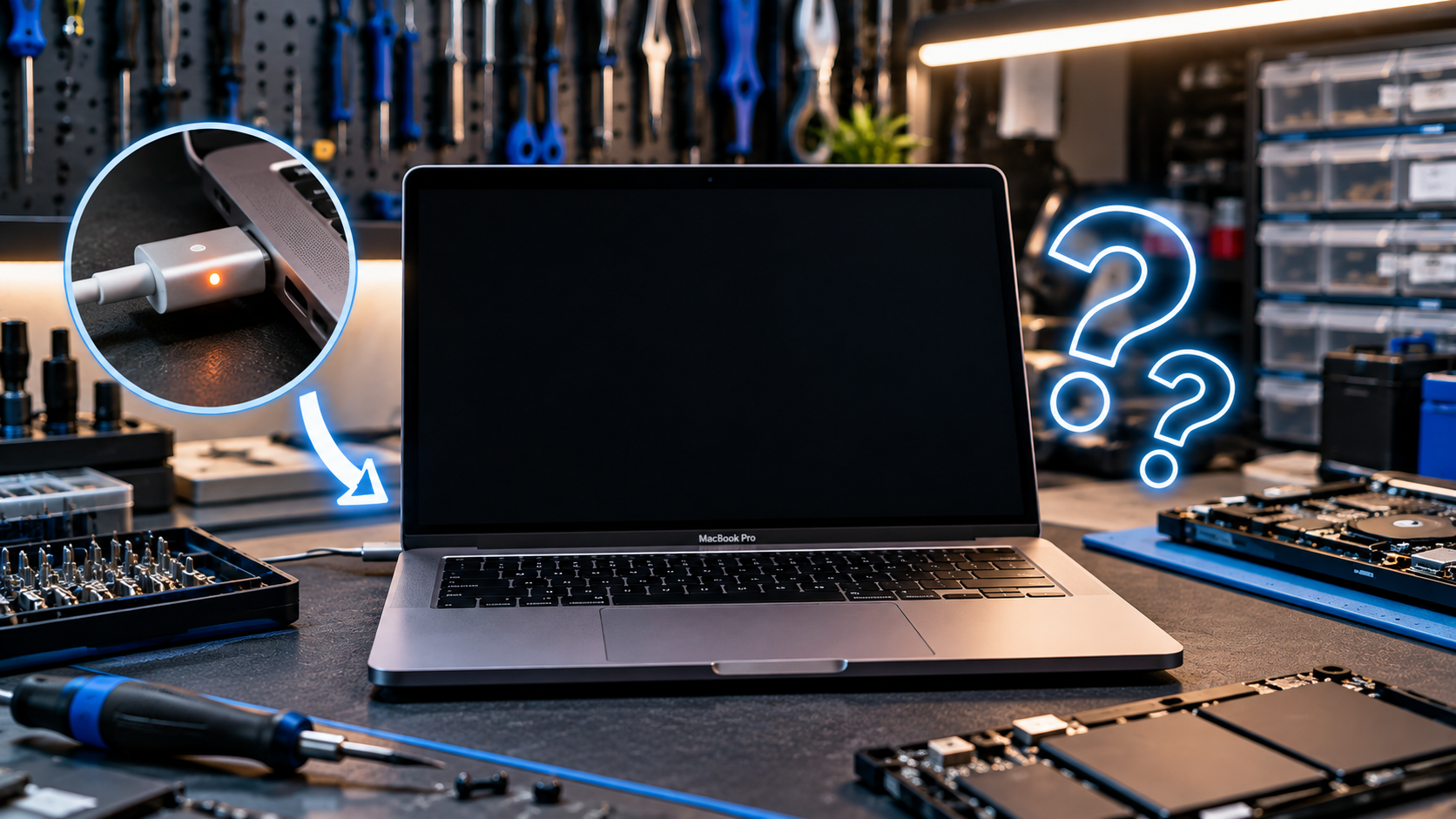
You press the power button, wait for the Apple logo, and get nothing. No startup sound. No display. No response. Before assuming your MacBook needs an expensive repair, there are several things you can check yourself.
A MacBook won’t turn on problem can come from something as simple as a drained battery or charger issue, but it can also point to a deeper hardware or startup problem. Here are eight checks to try first.
Why Won’t My MacBook Turn On?
A MacBook can fail to start for several different reasons. The battery may be completely drained, the charger may not be supplying power, or the MacBook may actually be running while the display remains black.
Other possibilities include a damaged charging port, software or startup problems, internal storage issues, or a fault affecting the logic board.
Pay attention to what happens when you press the power button. Does the screen light up? Do you hear a fan? Does the keyboard respond? Does the charging indicator change? These details can help narrow down the cause.
What Should You Check If Your MacBook Won’t Start?
Before taking your MacBook for repair, work through these eight checks one at a time.
1. Check the Charger and Power Connection
Start with the basics. Make sure the charging cable is properly connected to both the MacBook and the power adapter.
If possible, try another compatible charging cable, adapter, or power outlet. A faulty charger or damaged cable can make a working MacBook appear completely dead.
Also check the charging port for visible dirt or damage. Avoid inserting metal objects into the port to clean it.
2. Give the Battery Time to Charge
If your MacBook battery is completely depleted, it may not respond immediately when connected to power.
Leave it connected to a working charger for a while, then try starting it again.
If the MacBook only works when connected to power, shuts down unexpectedly, or loses charge unusually quickly, the battery may need testing.
For more information, read our MacBook Battery Draining Fast? Causes and When to Replace It article to understand the warning signs of battery problems.
3. Check for a MacBook Black Screen
A MacBook black screen does not always mean the computer is switched off.
Press the power button and listen carefully. You may hear the fan, startup sound, or other signs that the MacBook is running.
If possible, adjust the screen brightness. You can also connect an external display to help determine whether the problem is limited to the built-in screen.
If the MacBook appears to be running but the display remains black, the problem may involve the display, backlight, display connection, or another internal component.
4. Disconnect Accessories
Remove USB drives, external hard drives, hubs, memory cards, printers, and other accessories.
Then try starting the MacBook again.
An external device can sometimes interfere with the startup process. Removing everything except the charger helps rule out an accessory-related problem.
If the MacBook starts normally after an accessory is removed, reconnect your devices one at a time to identify which one may be causing the issue.
5. Try a Force Restart
If the MacBook is frozen and does not respond normally, a force restart may help.
Press and hold the power button until the MacBook turns off. Wait a few seconds, then press the power button again.
Avoid repeatedly forcing the MacBook off if it continues failing to start. If the same problem keeps happening, further diagnosis is more useful than repeated restarts.
6. Look for Signs of a Startup Problem
Sometimes the MacBook receives power but cannot complete the startup process.
For example, you may see the Apple logo, a progress bar that stops, repeated restarts, or a blank screen after startup.
This can indicate a MacBook startup problem involving macOS, the startup disk, an interrupted update, or another software issue.
If your MacBook reaches the Apple logo but does not continue to the login screen, the issue is different from a computer that shows absolutely no signs of power.
7. Check for Physical or Liquid Damage
Think about what happened before the problem started.
Was the MacBook dropped? Was liquid spilled near it? Did it suddenly shut down? Did the charging port become loose? Did you notice unusual heat or burning smells?
Physical or liquid damage can affect internal components and may prevent the MacBook from starting correctly.
If liquid has been spilled on the MacBook, avoid repeatedly trying to power it on. Continued power can make an existing electrical problem worse.
8. Consider the Battery, Charging System, or Logic Board
If the basic checks do not help, the problem may be inside the MacBook.
A MacBook power issue can involve the battery, charging port, power-management circuitry, or logic board. These problems cannot always be identified from the screen alone.
For a deeper explanation of laptop power faults, see Why Is My Laptop Motherboard Not Powering On? A Complete Guide. The article explains how power-related faults are diagnosed and why testing the power path matters before replacing major components.
Can a MacBook Battery Stop It From Turning On?
Yes, a severely depleted or failed battery can prevent normal startup, particularly if the MacBook is not receiving usable power from its charger.
However, do not automatically assume the battery is the problem.
A faulty charging cable, adapter, charging port, or internal power circuit can create similar symptoms. That is why testing the complete power system is important before replacing the battery.
If the MacBook shows signs such as rapid battery drain, unexpected shutdowns, or only working while plugged in, battery testing may be appropriate.
Why Is My MacBook Screen Black?
If your MacBook appears to turn on but the screen stays black, the problem may not be related to power at all.
Possible causes include:
- Display failure
- Backlight problems
- Display cable or connection issues
- Software or startup problems
- Logic board faults
- Damage caused by an impact or liquid
Try increasing the screen brightness and disconnecting external devices first. If the MacBook appears to be running but the built-in display remains blank, professional diagnosis can help determine whether the fault is with the screen or another component.
For example, EZ Laptop Repair’s MacBook Pro 16-Inch Screen Repair Guide explains how display problems can sometimes be separated from logic board issues.
When Does a MacBook Need Logic Board Repair?
Logic board repair may be considered when the MacBook does not respond to normal power checks and testing points to an internal board-level fault.
Signs can include:
- No response despite a working charger
- Unexpected shutdowns
- Power coming on briefly before stopping
- Liquid damage
- Charging problems that are not caused by the adapter or battery
- Repeated startup failure
- Other unexplained electrical symptoms
A diagnosis should come before assuming the logic board needs replacement. Different components can produce similar symptoms, and replacing a major component without identifying the actual fault can be unnecessary.
When Should You Get MacBook Repair in Las Vegas?
If you have checked the charger, allowed the battery to charge, disconnected accessories, and tried a restart but your MacBook still will not respond, it may be time for professional help.
You should also consider a diagnostic if the problem started after liquid damage, a drop, overheating, or another physical event.
EZ Laptop Repair provides MacBook repair in Las Vegas, including battery service, screen repair, liquid-damage work, and logic board repairs. The shop starts repairs with a diagnostic to identify the underlying problem before recommending a solution.
| Need Help With Your MacBook?Still getting no response after trying these checks? Get the problem diagnosed before replacing parts unnecessarily.Contact EZ Laptop Repair |
Frequently Asked Questions
Why won’t my MacBook turn on?
A MacBook may not turn on because of a depleted battery, faulty charger, charging port problem, startup issue, liquid damage, or internal hardware fault.
What should I do if my MacBook won’t start?
Check the charger and power connection, allow the battery to charge, disconnect accessories, and try a force restart. If there is still no response, professional diagnosis can identify the cause.
Can a MacBook battery stop it from turning on?
Yes. A failed or severely depleted battery can prevent startup, but similar symptoms can come from the charger, charging port, or internal power circuitry.
Why is my MacBook screen black?
The MacBook may be running even if the screen is black. Possible causes include display, backlight, connection, software, or logic board problems.
When should I get my MacBook repaired?
If basic checks do not restore startup, or the MacBook has suffered liquid or physical damage, professional diagnosis can help identify the fault before further troubleshooting causes additional problems.
Conclusion
If your MacBook won’t turn on, start with the simple checks before assuming the worst. Test the charger, give the battery time to charge, disconnect accessories, and look for signs that the MacBook is actually running. If nothing works, the cause may involve the battery, charging system, display, or logic board. Call EZ Laptop Repair now for a professional diagnostic in Las Vegas.
